Showing posts with label tasker. Show all posts

Tuesday, January 13, 2026

Building A Better Digital Bat Signal - Part 3 - The Phone

This is part 3 of a 3 part series on building an enhanced notification system when I have an unread urgent email. Part 1 describes the problem and Part 2 describes the server side code needed to power my solution. Part 3 implements the visual alert by having my phone react to messages sent by the server. Let's jump in.

Tasker, combined with AutoRemote, provides an elegant solution for responding to the inbox status messages that the server is issuing. Two short Tasks, and two short Profiles is all it takes to turn these messages into a hard-to-miss visual alert.

The main task is: SetInboxStatus; here's how it works:

%new_status is provided via a parameter to the Task. If the new status is unknown then the Task quits. In this case, we can't make any assumptions about what the status of my inbox is.

Otherwise, the task checks to see if %new_status matches the existing globally set status %INBOX_STATUS. If it does not, then we know we're dealing with a status-change. In this case, I invoke the SetWallpaper action with an image path that includes %new_status.

In other words, if the old status was ok and the new status is wife, then I set the wallpaper of my phone to: /storage/emulated/0/Tasker/images/inbox_status/wife.jpg.

Regardless of whether the status has changed, I note the time the status was set in %INBOX_STATUS_LAST_SET. That will come in handy in checking to see if it's been too long since my last status update.

The if condition in SetInboxStatus ensures that the phone only sets the background, a relatively expensive operation, if there's a change. This makes it safe to call SetInboxStatus with a non-changing status as often as the system wants.

The next Task is InboxStatus Watchdog. This task keeps an eye on %INBOX_STATUS_LAST_SET.

This value minus %TIMES is the number of seconds that have passed since a status was set. If this value gets to be larger than 1230 seconds (20.5 minutes), then it kicks in and sets the %INBOX_STATUS and background to unknown.

Next up, these Tasks need to be called by Tasker. This happens through two different Profiles.

The first profile depends on AutoRemote and looks for incoming messages with the regular expression ^SetInboxStatus.

There's a single action associated with this profile: run the task SetInboxStatus with the first parameter set to %arcomm. %arcomm is a magic variable that will be set to the right-hand side of the delimited message sent via AutoRemote. The server is sending messages in the format: SetInboxStatus=:=wife. In this case, %arcomm would be set to wife.

The watchdog profile is even simpler: it's set up as a Time profile that runs from 12am to 11:50pm and repeats every 5 minutes. Every time this profile runs, it invokes the task InboxStatus Watchdog.

All that remains is select the appropriate images for the different statuses. For the ok status I choose a standard background image. For the other status, I've asked Gemini for an assist, and created alert specific images.

When all is OK, my phone's home screen looks like so:

With an urgent message in my inbox, the background changes to:

The lock screen is also updated:

With nearly any interaction with my phone, an urgent alert will be painfully obvious.

I've had this system running for a little over a week now, including while we were on vacation in Hawai'i. While I have yet to receive an actual urgent message (hurray!), I did have the unknown status kick in when we were hiking in remote areas and my phone had no signal. When we returned to civilization, the ok status background would kick in. This gave me a delightful sense of assurance that even if I wasn't closely watching my email, a script I developed was.

You can grab the Tasker code for all of the above here. I'd still love to cook up a hardware based solution, but in the meantime, this Google API, AutoRemote, Tasker solution is working exceptionally well. You should give it a try!

Tuesday, February 06, 2024

Tasker: Saving Spouses one Profile at a Time.

(Chat GPT's rendering of Shira calling me on her way home from work, and me ignoring her. Nailed it.)

I've been happy keeping my phone on silent and getting notifications via my watch. This simplifies my life; I don't worry about my device's ringer going off at just the wrong moment, or having to overthink setting up ringtones and notification sounds.

Every once in a while, however, I'll miss an important call from Shira and she'll ask me: why don't you put my number on the DnD exception list? This list is the set of contacts who cause the phone to ring even though the device is in Do Not Disturb mode.

I then have to explain that I'm not using Samsung's built-in Do Not Disturb mode, instead, I'm using a custom Tasker Profile that doesn't know anything about this exception list. She then tells me that I should really fix this, and I promise her one day I will. I then forget about the problem until I miss another important call, and the discussion repeats.

But not anymore! Over this past weekend, I took a few minutes and looked into how I could implement an exception list for my always-on-silent Tasker profile. Turns out, it was easy to implement. The magic lies in Tasker's Call Screened Event. Creating a profile linked to this event allows you to run code as a phone call comes in, but before the phone has started ringing.
Using this event, I'm able to detect if the caller is in a special always-ring contact group. If they are, then I disable Force Silent Mode, crank up the volume, and accept the call. I then wait 1 minute and put the phone back into always-on-silent mode. Admittedly, this approach is clumsy: for 1 minute after Shira calls, anyone who calls will result in the ringer sounding. But for now, the simplicity of this approach outweighs its lack of finesse.

Here are the Tasker profiles, feel free to grab and use them: Force Silent Mode, Bypass Silent Mode.

I'm psyched to have learned about the Call Screened event. It seems like this capability could be put to use in all sorts of interesting ways.

Friday, June 09, 2023

Garmin and Tasker: Sending an I'm Here message when an activity is complete

One common exercising arrangement is for Shira and I to drive to the gym together. She then attends a class while I use the time to run in the area. Typically, after about an hour hour, we meet back up to compare notes. When she leaves the class, if I happen to be out of sight, she's not sure if I'm done running and walking around the block or if I've opted to overdue it and am still 3 miles away. The courteous thing to do is to text her when I'm done running so she knows where she can find me. After doing this a few times it occurred to me that surely I could automate this process.

A First Attempt: Using the Garmin Tasker App

My first thought was that I could use the Garmin Tasker App to add a notification feature to my Garmin Vivoactive 4 watch. After running I'd click a few buttons on my watch, which would ultimately invoke Tasker, which would send Shira an "I'm here" message and a Google Map link.

I'd been meaning to set up the link between Tasker and my Vivoactive watch, so perhaps this was the perfect example to start with.

One challenge is that the integration between Garmin and Tasker is primitive to say the least. The watch app works by asking the phone to navigate to a synthetic URL. This URL can be intercepted by Tasker and code can be executed. This is a clever work-around but isn't obvious to configure.

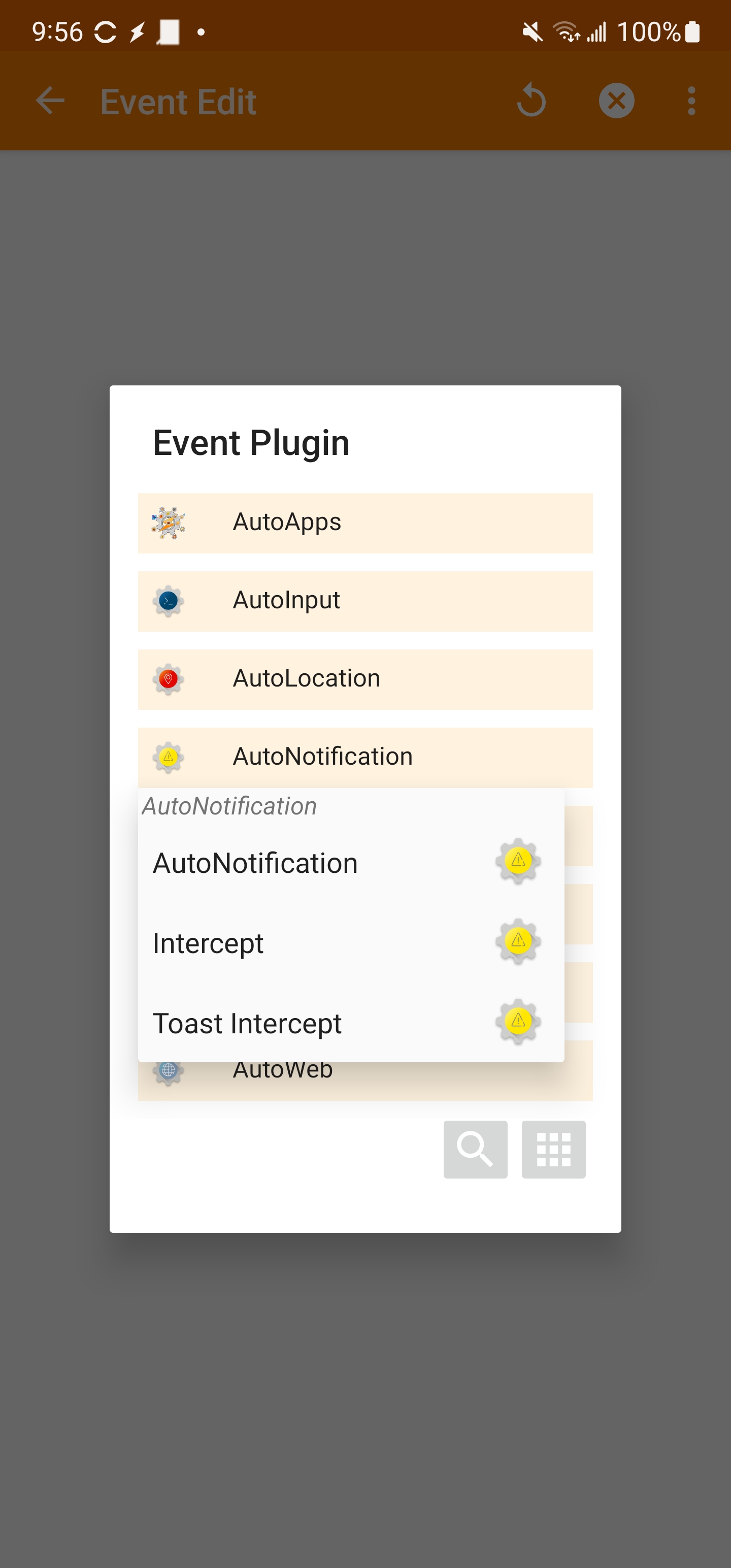
A Simple Solution: AutoNotification Intercept Event

While I futzed with the Garmin Tasker watch app, I realized there was an easier solution to my problem. When I finish running I stop the Garmin run activity I started at the beginning of my jog. This records the stats for my run and is now second nature to do. A minute or two after I stop the activity, I get a notification on my phone that "Your activity is ready to view." It occurred to me that I could use the AutoNotification plugin for Tasker to detect this message. I could then send Shira my location based on this event.

To build this out, I need to create a Tasker Profile which is initiated by the AutoNotification Intercept  event.

The tricky is configuring the AutoNotification Intercept event to make it react to the Garmin notification. Thankfully, AutoNotification comes with a nifty "Fill From Current" option that fills in these details for you:

With this profile configured, the rest of the code was straightforward. The AutoNotification Intercept event triggers the Garmin: Activity Complete task, which in turn calls the Text My Location task. You can download the profile and corresponding tasks from Taskernet. You may also need the Text My Location and Where Are You tasks for this to function.


With this code in place, Shira is automatically notified of my location after each run. Life automated; problem solved!

Tuesday, February 28, 2023

Finally: USB Thumbdrive Access from within Termux

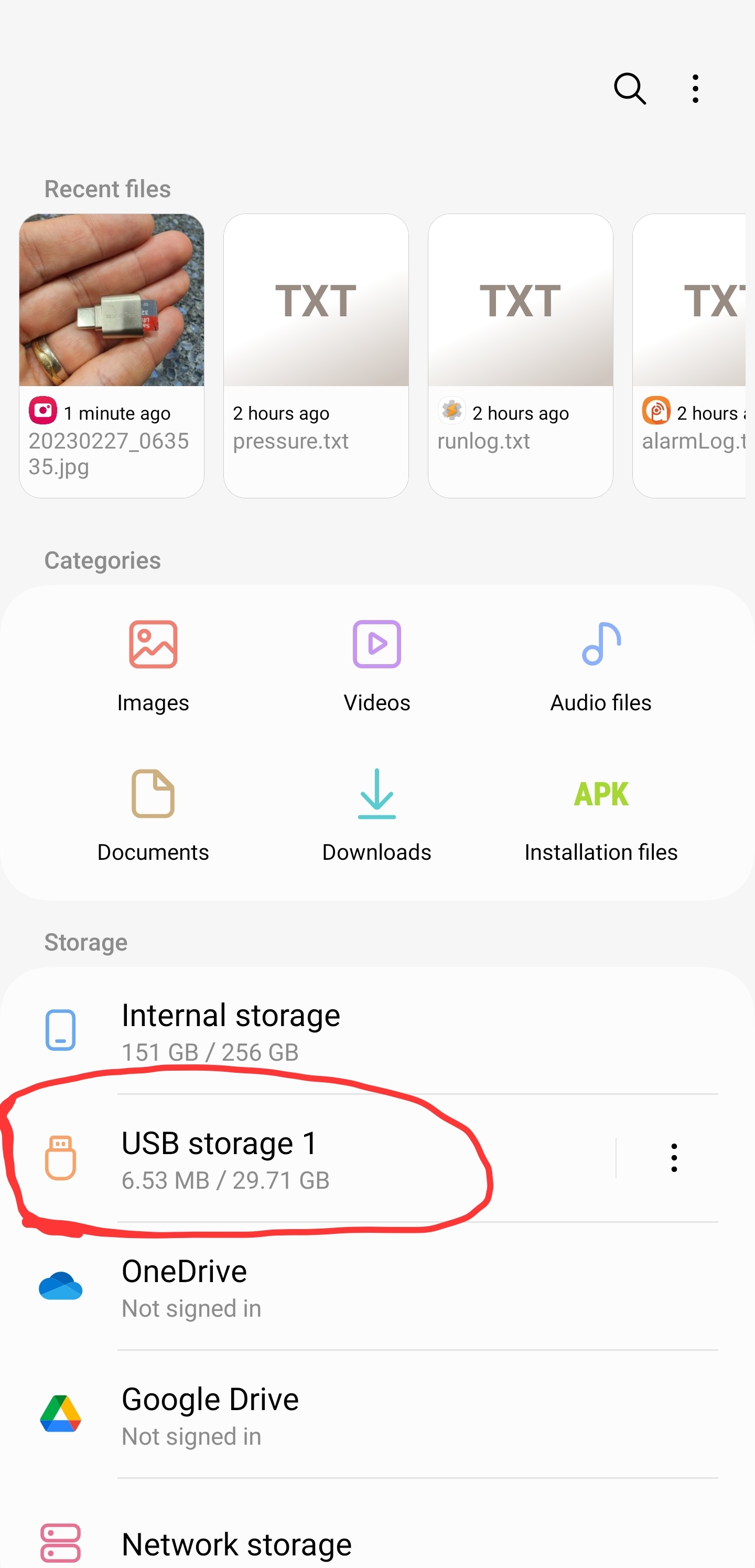
One maddening exercise in Termux is inserting a USB Thumb drive into your phone: it will be recognized by Android, but invisible to Termux.

See, My Files on my S22 Ultra recognizes the USB reader:

Termux, despite re-executing termux-setup-storage, doesn't.

Grrrrr.

The usual suggestion to overcome this shortcoming is to root your phone; something I'm not ready to do (yet). Thankfully, after years of running into this issue, I finally found an easy, no-root, work around. Here's the fix in action:

In the above screenshot, you can see I'm interacting with the USB thumdrive via the command fsops and the path /mnt/media_rw/B601-0C66.

fsops is my own creation, which you can find on github. It supports listing, copying, cat'ing and removing files. It plays nice with other bash commands so you can use it as part of one-liners or scripts in general.

fsops works because of two truths. First, Tasker, like my phone's file browser, can see USB drives. When I launch a File Select action in Tasker, it let's me click on the icon in the bottom right corner to browse the USB drive:

Incidetanlly, that's how I learned the magic path /mnt/media_rw/B601-0C66.

Next, it's possible to invoke Tasker from Termux's command line (including from within a proot'd Linux instance). This post explains how. The mechanism in use here is Android intents. You can set up a Tasker profile to listen for net.dinglish.tasker.Xyz and then invoke:

am broadcast --user -a net.dinglish.tasker.Xyz

To call the Xyz profile. fsops invokes tasker with the following parameters:

am broadcast --user 0 -a net.dinglish.tasker.FileSystemOperation \
	-e operation "$op" \
	-e outcome "$outcome" \
        -e error "$error" \
	-e src "$src" \
	-e dest "$dest" > /dev/null

op is set to the operation I want to perform and the remaining variables are set to files that will either be set by the user or filled in by fsops.

am broadcast delivers data to Tasker, which invokes my file system operation of choice. am broadcast makes no promises about when the task will be finished. To overcome this limitation, fsops passes a path in the variable $outcome and polls the existence of this file to detect when the task is done. While a bit on the brute force side of things, it does work well.

You can grab fops here, and the Tasker resources here. Once set up, that thumbdrive will finally be available in Termux. Whoo!

Friday, November 18, 2022

Tasker: Auto Downloading a Random Pic From A Google Photos Album

I wanted to dress up my Tasker based Focus Mode by adding a picture on the Focus Overlay scene. To make things more interesting, I wanted to it to be a random pic of my wife that would update on a regular basis. After all, she's the one I'm usually trying to focus for.

Here's what the finished product ended up looking like:

Here's how I got this to work:

1. I Created a Google Photos live album. This is a slick feature offered by Google Photos that causes photos to be auto-added to an album every time the selected face is detected in an image.

2. I figured out this album's Album ID using the Google Photos API's try this method feature.

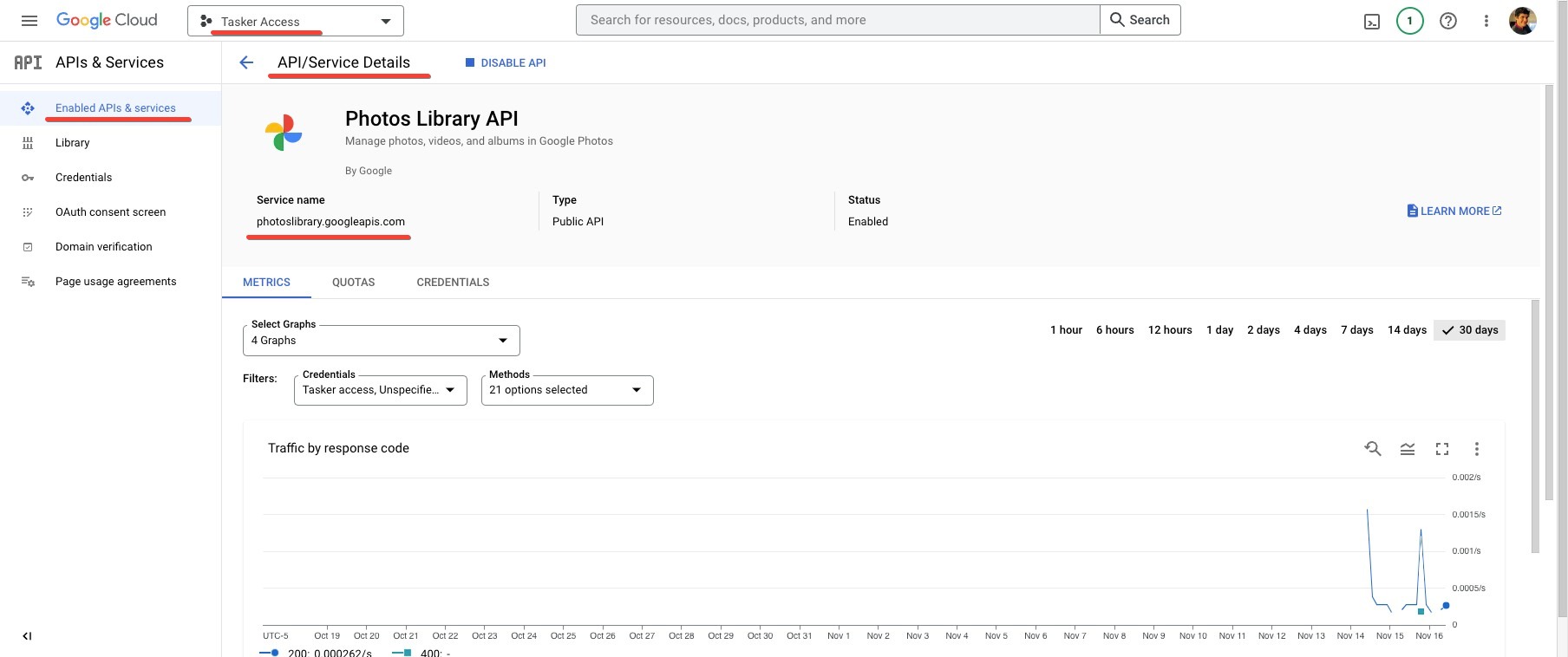
3. I headed over to console.developers.google.com and created a new project and enabled the Google Photos API on it. This project is needed so I can authenticate with the Google Photos API and access my private photos in a secure way.

4. While on console.developers.google.com I added a new set of credentials. I chose OAuth client id for the type of credentials and selected Web Application under application type. Finally, I added https://tasker.joaoapps.com/auth.html to the Authorized Redirect URIs as noted in the Tasker Documentation.

I saved the Client ID and Client secret shown on the credentials page as I would be using them later on in the process.

5. Switching into Tasker, I created a general purpose task that grabs a random photo from a Google Photos Album. You can grab this task from TaskerNet. I fell back on my usual strategy of using Javacriplets to set up calls to, and process the response from, an API. In this case I'm making two web calls: the first to the API to get the details of the first 100 photos in the album identified by %par1. I'm then randomly picking one the mediaItems, and downloading it to the filename provided in %par2.

6. I created a Grab Random Wife Picture task which calls the task in step (5) with the album ID and file name of my choice.

7. I created a time based profile that runs on the hour, throughout the day, and calls the task in step (6).

8. Finally, I updated the Focus Overlay, swapping out the text box that read 'Focus' with an image element. The image element uses the path to the downloaded file, which is updated hourly.

Whenever I launch focus mode it shows me the latest image that has been downloaded. And most importantly, it makes me smile.

Tuesday, November 08, 2022

Tasker Powered: Like Samsung's Focus Mode, But Much Uglier

Fandabi Dozi's suggestion, in this video, of not using your phone during the first and last hour of the day caught my attention. It inspired me to consider: what if I turned off my phone not at edges of the day, but when Shira returns home from work? My hypothesis is that when she walks through the door we should be paying attention to each other, not getting distracted by tempting phone content.

Mind you, I didn't really think I had a phone-distraction problem. I thought of this experiment as a sort of a tech based romantic gesture. She'd appreciate that I was putting her first, and I'd show myself just how non-phone addicted I was.

One challenge is that I didn't really want to turn my phone off. What I wanted was a way to keep the utilitarian functions available, while locking myself out of the apps looking to suck up my attention.

Focus Up

Fortunately, my Galaxy S22 comes with just the feature I needed: Focus Mode. In Focus Mode you select which apps you want to remain functional and all others are blocked by a warning.

First off, I deleted the default Focus Modes that came with the phone. I then created a new mode named 'Us Time.' A number of apps always work in Focus Mode. I added to this the camera, my note taking apps and Cronometer which I use for tracking meals. The idea is that when I'm in 'Us Time' I can use phone for capture purposes, but everything else is off limits.

With much fanfare I turned on Focus Mode. In no time, I found myself reaching for my phone to peek at Reddit or look something up on the web. Focus Mode scolded me and I'd put the phone down. Apparently I turn to my phone more often than I expected.

Having the ability to record notes and photos meant that any thoughts that came to me while my phone was in Focus Mode could easily be captured. That proved to be a functional compromise.

I really noticed the Focus Mode effect later in the evening when I had the mode turned off. Shira nudged me: shouldn't you be brushing your teeth? I was standing over my desk reading a fairly useless Reddit discussion on whether long distance hiking is considered a vacation (spoiler alert: it is). I'd been busted. I hadn't intended to sink time into that silly thread, but a free moment had sucked me in.

This little experiment gave me a fresh perspective: while I'm a fan of the very apps I'm blocking in Focus Mode, I realized I want to use them on my terms, not theirs.

The Tasker Version: Way Uglier, Way Functional-er

While I like Samsung's Focus Mode, I find it lacks flexibility. The fastest option I can find for launching Focus Mode involves in three presses. That's a waste: why can't I start it with one? And I'd like to experiment with putting Focus Mode on a schedule or having it start based on an external event, like when Shira walks in the house. In other words, I wanted a Tasker powered version of Focus Mode.

Unfortunately, there's no direct way to manipulate Focus Mode in Tasker. Instead, I needed to implement my own version of Focus Mode from scratch in Tasker. While this sound daunting, it's actually straightforward.

Looking around, it seemed I had three options:

  1. Use ADB WiFi to disable and enable apps. Using this approach, I could disable all apps on my phone except for the ones allowed during Focus Mode. This approach is a bit too heavy handed. I'm looking for a nudge here, not an actual phone lock down.
  2. Create a simple profile that detects when disallowed apps are launched and run the 'Go Home' Task. This approach is simple and effective. You can start any app you want, but within a moment you're back at the home screen.
  3. When the launcher app runs, in my case Smart Launcher, spawn a pop-up that sits on top of the UI. This pop-up will cover the launcher app so you effectively can't use it. The pop-up can contain its own buttons to launch approved apps.

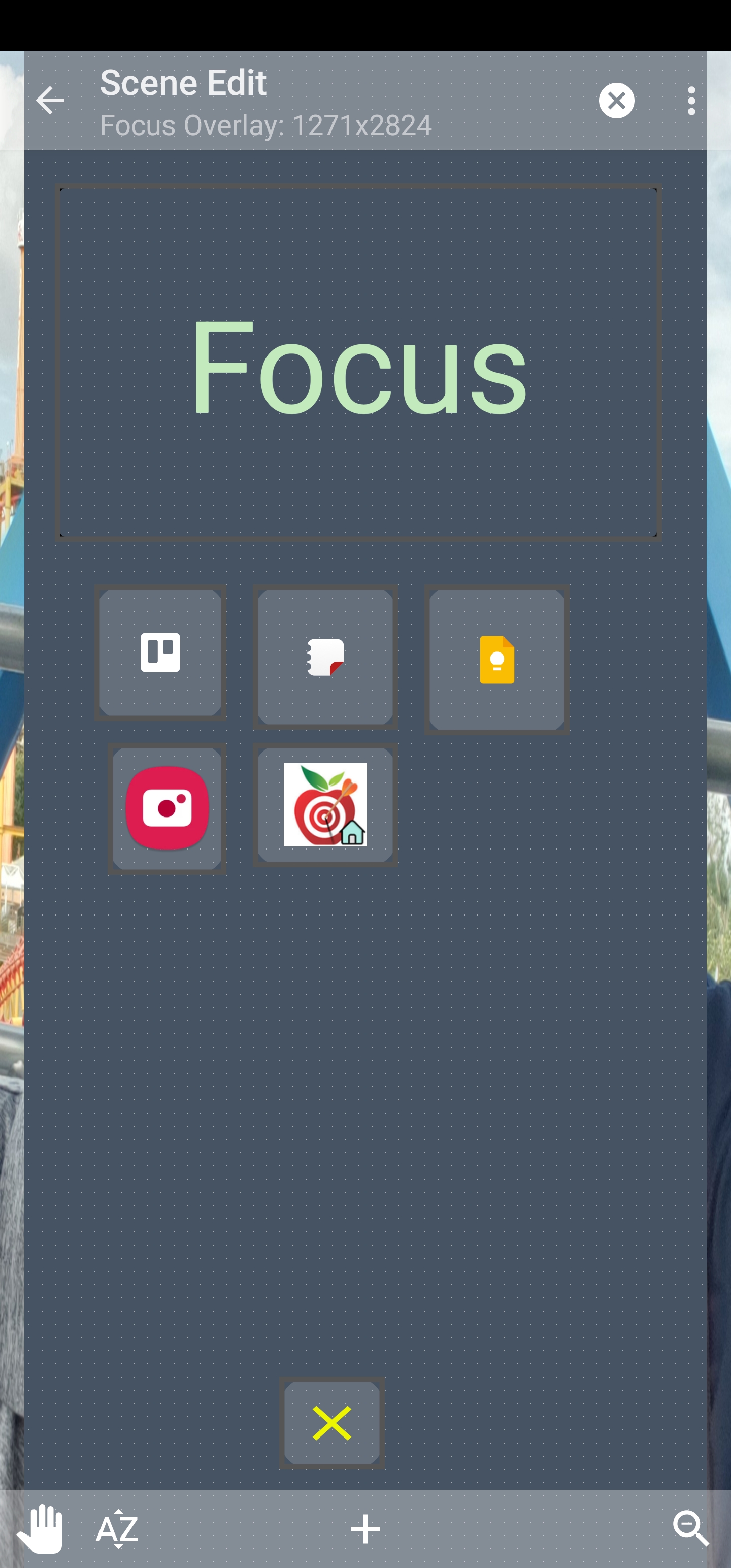
I ended up going with Option #3, and it was surprisingly simple to implement. I created a new Scene, Focus Overlay, that takes up most of the screen. The trick is to 'create' this scene whenever Smart Launcher is running in the foreground. Tasker allows this functionality with a simple profile:

When I launch an app using a button on the Focus Overlay, I destroy the Focus Overlay scene and launch the relevant app. When I eventually return to my home screen, Smart Launcher is launched again and the profile that detects this creates a new copy of the Focus Overlay.

While this approach is far less sexy than the built in versions of Focus Mode, it's just as effective. Best of all, it's trivial to automate. I was able to add widget to my home screen to start Focus Mode in one press. I also created a SMS handler so that if Shira texts me the word 'FOCUS' the mode will start as well. I plan to experiment with ways to have Shira's phone trigger Focus Mode when she walks in the door. My current thinking: I'll have her phone send an AutoRemote message to my phone when her phone join's our home WiFi.

When I initially heard of Samsung's Focus Mode I wrote it off as a marketing gimmick. I was wrong. Focus Mode helps your phone work for you, instead of against you. And what I thought was a simple romantic gesture has turned out to be so much more.

Monday, July 11, 2022

Fixing an Android Gotcha: Snoozing WiFi

One phone quirk I've run into for years goes like this: I walk out my front door and realize I need to look something up on the web. I try using my phone's browser, but the browser just hangs. The problem is simple: my phone thinks it's on WiFi, but I've just walked out of range.

After muttering under my breath, I turn WiFi off and my phone goes back to working.

Inevitably, a few days later I realize that I never turned WiFi back on and again find myself muttering under my breath. Every time this happens I think there has to be a better way of handling this.

And now there is: Snooze WiFi.

Snooze Wifi is simple Tasker Action that does what the name suggests: it turns off WiFi for 5 minutes and then turns it back on. It took 30 seconds to code and 5 minutes to debug the tasker can't disable WiFi bug that appeared the first time I tested the action.

Here's the Tasker code:


And here's the icon I can press to trigger it:


Of course, what I need is way to automatically run this task when I walk out the front door. That will have to be part of v2.0. For now, you can grab this version from taskernet.