Showing posts sorted by relevance for query thumbdrive. Sort by date Show all posts

Tuesday, December 14, 2010

Gotcha of the Day: HP Mini boots to Grub Recovery Prompt, not Windows 7

Our next door neighbor brought over their HP Mini Laptop which was having some serious boot issues. You'd turn it on, and rather than booting to Windows 7, it would leave you at a prompt like so:

error: no such device XXXX
grub rescue>

Apparently, the previous owner of the laptop installed Windows over the Linux distribution that came with the laptop. Hence the unexpected mix of the Grub boot loader and Windows 7.

Here's how I got this sucker booting again (I'll spare you the false starts and just give you the recipe that worked):

  • Downloaded the very cool Ultimate Boot CD
  • Followed the instructions to generate a bootable USB thumbdrive
  • Plugged in the thumbdrive, turned on the laptop, and hit F9
  • Selected the thumbdrive from the list of bootable devices
  • Selected UBCD FreeDOS from the menu
  • Selected the first option for booting, and watch lots of exotic looking messages scroll by
  • Selected Launch to access the UBCD applications
  • Selected HDD Boot Management
  • Selected MBRWork
  • Selected option 5, Install standard MBR code and confirmed my selection
  • Hit escape a bunch of times to get back to a DOS prompt
  • Pressed Control-Alt-Delete and held my breath
  • Watched in amazement as Windows booted

Looks like my guess that the Master Boot Record got hosed was right. Whew. Looks like those low level Linux installs of years ago really paid off.

My suggestion: prepare the Ultimate Boot CD on a thumbdrive now, and have it ready to go. Sooner or later, you're going to need at least one of the many tools it offers.

Tuesday, February 28, 2023

Finally: USB Thumbdrive Access from within Termux

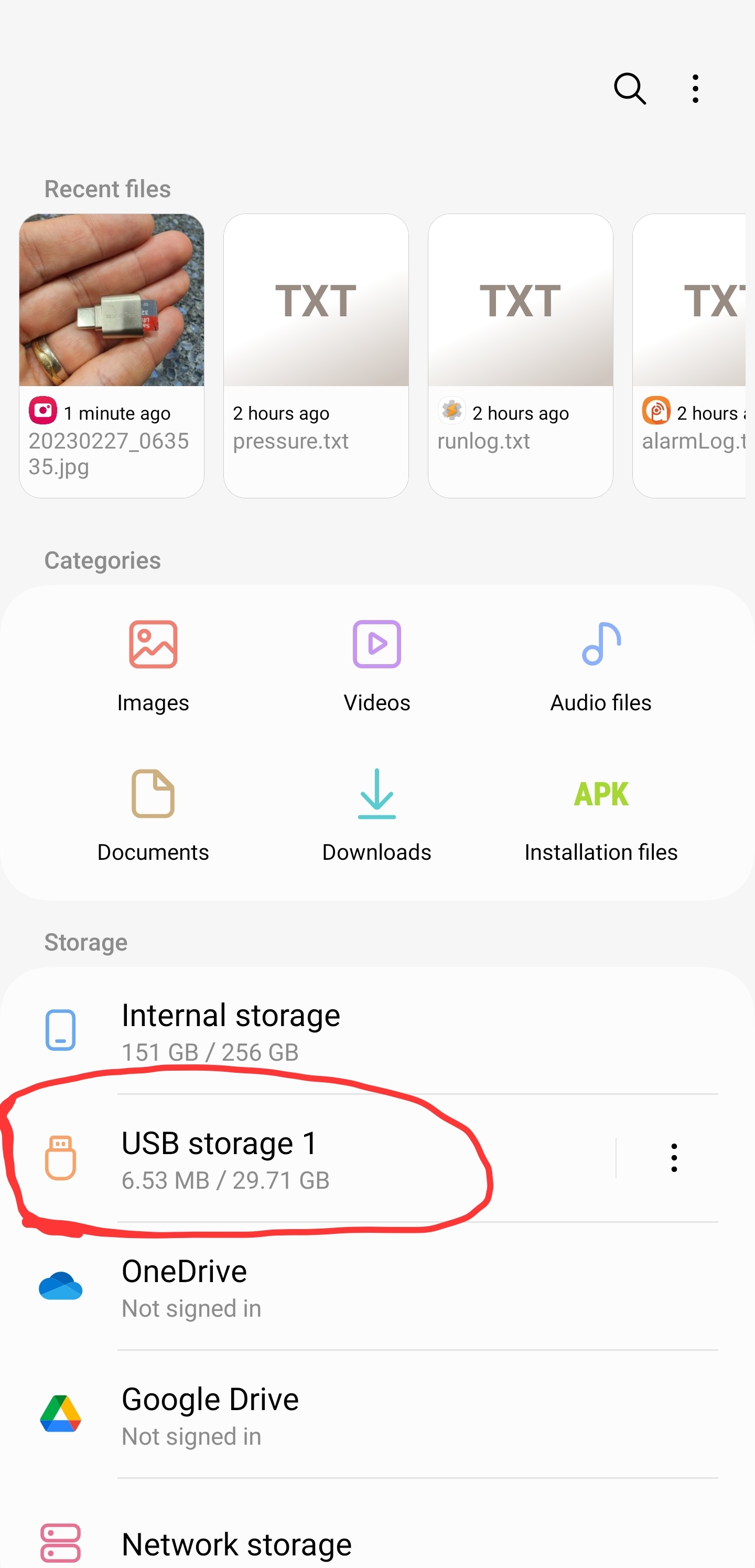
One maddening exercise in Termux is inserting a USB Thumb drive into your phone: it will be recognized by Android, but invisible to Termux.

See, My Files on my S22 Ultra recognizes the USB reader:

Termux, despite re-executing termux-setup-storage, doesn't.

Grrrrr.

The usual suggestion to overcome this shortcoming is to root your phone; something I'm not ready to do (yet). Thankfully, after years of running into this issue, I finally found an easy, no-root, work around. Here's the fix in action:

In the above screenshot, you can see I'm interacting with the USB thumdrive via the command fsops and the path /mnt/media_rw/B601-0C66.

fsops is my own creation, which you can find on github. It supports listing, copying, cat'ing and removing files. It plays nice with other bash commands so you can use it as part of one-liners or scripts in general.

fsops works because of two truths. First, Tasker, like my phone's file browser, can see USB drives. When I launch a File Select action in Tasker, it let's me click on the icon in the bottom right corner to browse the USB drive:

Incidetanlly, that's how I learned the magic path /mnt/media_rw/B601-0C66.

Next, it's possible to invoke Tasker from Termux's command line (including from within a proot'd Linux instance). This post explains how. The mechanism in use here is Android intents. You can set up a Tasker profile to listen for net.dinglish.tasker.Xyz and then invoke:

am broadcast --user -a net.dinglish.tasker.Xyz

To call the Xyz profile. fsops invokes tasker with the following parameters:

am broadcast --user 0 -a net.dinglish.tasker.FileSystemOperation \
	-e operation "$op" \
	-e outcome "$outcome" \
        -e error "$error" \
	-e src "$src" \
	-e dest "$dest" > /dev/null

op is set to the operation I want to perform and the remaining variables are set to files that will either be set by the user or filled in by fsops.

am broadcast delivers data to Tasker, which invokes my file system operation of choice. am broadcast makes no promises about when the task will be finished. To overcome this limitation, fsops passes a path in the variable $outcome and polls the existence of this file to detect when the task is done. While a bit on the brute force side of things, it does work well.

You can grab fops here, and the Tasker resources here. Once set up, that thumbdrive will finally be available in Termux. Whoo!

Thursday, September 22, 2005

Forest of Links: Portable Linux on my Thumbdrive.

Forest of Links: Portable Linux on my Thumbdrive.

Yet another project I would love to have time to play with. Argh. Need to work on both time travel and cloning. Or maybe time traveling clones.

Monday, October 01, 2007

Tiny Tool: MiniAIM

The other day I needed to jump on AIM, but was away from my usual computers. At first I tried AIM Express, a web only version of AIM. Unfortunately, its use of plugins and related nonsense kept it from coming up on in my browser.

Good thing too, or I may never have Googled around and found MiniAIM. Weighing in at 64k, and not needing an install program, it just plain works. I was off an IM'ing in no time at all.

I quickly added it to my thumbdrive, as it passes the portable and useful tests.

Tuesday, May 03, 2016

Pocket Dump: The I'm Officially Old Edition

Now that I'm officially old (having turned 40 a few days ago, whoo!), it seems somewhat appropriate to do my yearly pocket dump. Here's 2015's version and here's one from 2013. No huge changes, though plenty of tweaking:

Let's see...

  • Still carry the same $0.75 3x5 notepad. While my Galaxy Note 5 has a pen and all, nothing tops the speed, versatility and convenience of simple pen and paper.
  • My "wallet" held together by a small binder clip. This includes cash, metro card, visa card, debit card, medical card, a folded up check, and backup codes to get into Two-Factor authentication accounts. I'm really loving the binder clip wallet.
  • A coin. For a while I tried carrying a slightly sentimental coin, such as one of the $1.00 coins that I picked up Ecuador (which is quite common, oddly enough). But I kept losing it. So now I just try to have a random coin on me. It's useful for making decisions and for other odd jobs.
  • CPR Essentials - That's a CPR Mask, Gloves and instructions. Thankfully, I've never needed the mask, though the gloves have come in handy.
  • Pilot G2 Pen. Still may favorite pen and ink combination.
  • Cen-Tac Slim Line Pen - a relatively new addition. It's a self-defense item and writing implement, and appears to do both well. I'm loving the it-doesn't-look-like-a-self-defense-tool look of the pen. Another bonus I realized yesterday: the Pilot is blue ink and the Cen-Tac is black ink. That's two different colors for even more expressive drawing.
  • Handkerchief - probably the most used and useful item I carry. Now that I'm over the hill, I can carry this with pride. Though I've been carrying one since high school, so it's hardly a new addition.
  • My "wallet" - contains a bit of cash, nothing identifiable and whole lot of 'junk.' See below. If you want to rob me, I'll gladly hand this over to you. And if you're enlightened enough to appreciate the ways of EDC, you'll consider it one awesome score.
  • Steel Wire Keychain - I'm loving this style of key chain. It's sturdy enough that I'm confident it won't break and it unscrews easily enough to access the items on it. For $3.50 for 20 of them, it's a deal hard to beat.
  • On the keychain:
    • Photo Microlight knock off. I picked up 10 LED lights for $9.99 and they're just so bright. I couldn't resist putting one on my keychain and phasing out my beloved Photo X-Light. One day I'll probably splurge and buy another X-Light, but for now, I'm happy enough with these knock offs.
    • House key. What a novel inclusion, right?
    • Derma-Safe Razor Blades - still my preferred EDC knife. Super sharp, super compact and easy to replace when it gets all nasty.
    • P-51 Can Opener - still my multi-tool of choice. It's sized perfectly to fit on one end of the key chain and not slide off the other. These days I'm using a paper clip to keep the P-51 closed. Last use of the P-51: to open a can of tomato sauce about a week ago. Crazy, right?
    • A Safety PIN and another Paper Clip - Two super useful, super lightweight objects.
    • (2) Pill Cases - Holds, pills. Insert joke about age here. Actually, one of the pills I carry is for Shira and her migraine's, so it's not all about me.
    • Tac Compass - the compass actually gets stored in the pill case. So far, the Tac Compass is holding up well and storing it in the pill case is turning out to be ideal.
    • Nitecore NWS10 Whistle - Titanium baby! I'm not completely convinced that this whistle is as loud, or louder than the Fox Micro Whistle that I carried for so many years. But it's definitely more compact and it's holding up well. It stays for now.
    • Doinshop USB Micro SD Card Adapter - this guy is bigger than the Kingston one I carried for some time. However, it seems to protect the card and be more reliable due to it being more sealed. Regardless, I still like the idea of carrying a thumbdrive with personal documents, USB adapter, backup card for my camera and backup storage for my cell phone all in one tiny package.
  • Not shown: Galaxy Note 5 Cell phone, Car Keys and Res-Q-Me car escape tool

As for the wallet mentioned above, even I was a bit curious what was inside of it. Here it is 'dumped:'

Here's most of the items in the photo:

  • Paper Ikea Tape Measure. Note to self: time for a new visit to Ikea to stock up on tape measures.
  • An Oven bag.
  • Various noteworthy fortunes.
  • A short strip of Leukotape P on piece of Rock-Tape backing. Leukotape P is crazy sticky.
  • A Fresnel lens
  • A length of 100# test fishing line
  • Twist ties
  • A floss card
  • Stickers!
  • (2) Scratch-off lottery cards
  • Various flat-pack, powered meds.
  • A (hopefully) important looking Kinkos Card that serves as a credit-card stand in.
  • Some very thin toilet paper from my travels in Ecuador. Here's a lesson you learn there quickly: many (most? all?) publicly accessible bathrooms don't have toilet paper. This tiny stash saved my, well, butt, on more than one occasion.
  • A card size section of tape filled with glow-in-the-dark powder. It was an experiment in making a glow in the dark card. It was mostly a flop, but for some reason, I still have it in my wallet.
  • Lots of twist-ties
  • Band-aids - these are among them most used items in my wallet.

Yeesh, it's time I clean that puppy out.

So there you have it. Another year older, another year wiser and another year prepared for whatever life has to throw at me.

Wednesday, February 27, 2019

New Life for an Old Laptop | Powered by Neverware's CloudReady

Over the weekend I was cleaning our second bedroom and saw the stack of old laptops I've got stashed away. As I was pondering what I could do with them, it hit me: could I turn one or more of them into Chromebooks? I love the zero setup, Just Works nature of my Chromebook and wondered if the same software could be installed on ancient hardware.

A quick Google Search and YouTube video gave me my answer: Yes!

The magic is provided by Neverware's CloudReady. I downloaded their installer and used it to turn a 16GB USB Thumbdrive I had lying around into a Chrome OS installer.

On the hardware side, I found a Lenovo B575 laptop with an index card taped to it that read Slow, but works. The hardest part of the setup was digging through my pile of AC adapters to find the right one.

The setup process was effortless. Sure, downloading the installer took time, and so did the process of copying Chrome OS to the hard drive. So don't attempt to do this process in a hurry. But the result is as promised: I've turned an ancient 'slow, but works' laptop into a totally usable Chromebook.

After logging in I found my desktop setup carried over from my store bought Chromebook, down to the same background and 'shelf' orientation. I popped over to YouTube and was able to blast some tunes. Heck, I'm composing this blog post on the new laptop. Amazing.

There's no comparison between the slick new hardware of my ASUS Chromebook and this old Lenovo. Boot-up, for example, is speedy on my new box and takes its own sweet time on the Lenovo. But the keyboard is actually pretty solid on the Lenovo, the screen size acceptable and most importantly, it all just works.

Below are some pics of the setup experience, but the bottom line is this: if you've got an old laptop lying around give Neverware's CloudReady a chance. If your experience is anything like mine, you'll be glad you did.

Tuesday, September 20, 2011

AIDE - Simple intrusion detection software

I'm a programming geek, not hardware, OS, network administrator or security geek. So, I like my security tools simple. Just trusting that the virus checker is working away is fine and all, but if I can actually know how something works, I'm all the happier for it. Which brings me to my latest security software find: AIDE.

I was setting up a new server and wanted to put Tripwire on it. Or, at least I thought I did, until I learned that Tripwire had apparently gotten a lot more complex than when I first learned about it years ago. The idea behind Tripwire was that you ran it once to capture the checksum of most files on your system. You could then run it anytime you wanted, and it alerted you to any changes found.

These changes are an excellent place to start searching for an attack. Like when I had a server compromised years ago by a rootkit, and /bin/ps and other binary files had been replaced with evil twins.

Tripwire apparently has split into a commercial and OpenSource version, and even then I wasn't sure if it still did what I thought it did. Luckily, I found AIDE, and it continues the tradition of simplicity. Even the "web site" explaining AIDE is old school text. I love it.

AIDE really only does two things: (1) it'll generate that snapshot of what the system currently looks like, (2) it'll check that snapshot against the current system.

So far, I've been using AIDE in two ways. First off, I manually generated the snapshot (using the --init option), and nightly, I run the check to see if anything has changed. It's taken a bit of tuning, but I've managed to get rid of most of the false positives. Now, I get a nightly report that alerts me to any unexpected system changes.

This is useful against basic attacks, but there's a doomsday scenario where a hacker breaks in a tampers with AIDE itself. Heck, they could just turn off cron and it would never run. To deal with that, I've copied the AIDE database to an offsite location. I guess if I was a true sysadmin, I might copy onto the thumbdrive on my keychain and rest a little easier knowing that it's always at hand. Personally, I'm fine with the offsite location. During either a regular security audit, or if I think something fishy is going on, I can always grab a fresh copy if AIDE and check the files against the pristine database stored elsewhere.

Like I said, I'm not a security guru, so take what I've written above with a grain of salt. Still, it just looks simple enough that it might actually work.

Wednesday, December 14, 2022

Finding, Printing and Using Paper Local Maps

This Reddit discussion and this YouTube video inspired me to brush up on my old school map and compass skills. While figuring out where I could find the time to do this I had an epiphany: I didn't need to be exploring the backcountry to practice reading terrain or shooting azimuths; I could do all this in my own neighborhood. An no, I didn't need to buy a fancy compass either, the one built into my phone would be more than adequate. All I really needed was a high quality paper map of my local area.

A bit of Google'ing provide an easy answer to where I might find such a map. The USGS has been publishing local maps of the US since 1947. Using the USGS topo viewer, I plugged in my address and downloaded the 2022(!) Alexandria, VA 1:24000 quadrangle. I couldn't help but celebrate how smoothly my plan was coming together: I'd be practicing my orienteering skills in no time.

The map files are distributed as GeoPDFs, which means they can be opened and printed from any PDF reader, so that's what I did. As I grabbed the map from the printer I realized just how flawed my plan had been: the map was there, but it was scaled down to an unreadable level. As a local navigation tool, it was useless.

A quick Google Search suggested I wasn't the only one who had this problem, and offered these National Geographic maps as a solution. This was promising, as these were USGS maps and were designed for printing on letter sized paper. But there was a significant catch: many of these maps are now quite dated. For example: the Alexandria, VA quadrangle is from 1983. Considering the USGS has an update map from last year, it seemed silly to rely on National Geographic's ancient version.

I looked around for other solutions, but ultimate did the unthinkable: I read the manual. Or rather, I watched the Using the National Map Products and Services playlist on YouTube. These videos take you through viewing, downloading and yes, printing USGS maps. I watched them at 1.5x speed, and they were more than worth my time. In fact, I'd argue that if you spend any time in the outdoors or ever glance a map, it's worth taking the time to watch these videos.

In the next few posts I'll walk through each of the lessons I learned that let me ultimately produce local hard copy maps that exceeded my expectations. Up next: finding local maps.


See Also

Tuesday, August 25, 2015

Getting back to booting: Adventures in Fedora 22 Grub Hell

Yesterday, I picked up my Linux laptop from a local repair shop. They were helping me debug a touchpad issue that keeps coming up. They were kind enough to pop out the Linux drive and drop in a Windows one to do some testing; thereby seeing if the issue is hardware or software related. The results are still inconclusive. However, when they returned the laptop to me, the system would no longer boot into Linux.

A quick Google search turned up results like like this one, that implied recovery was going to be a no-brainer. If that wasn't easy enough, there was always SuperGrubDisk, which promised an even easier fix.

Alas, it was not meant to be. After hours of mucking around, I finally gave up. The links I kept finding were either too dated, or just didn't apply to my system. So I did what any smart programmer does when they hit a wall: I went to bed.

This morning, I figured out a recipe for getting back to booting. Here goes:

  1. Download the Fedora Server ISO (yes, it's 2.1GB, get over it)
  2. Install the ISO on a thumbdrive using LiveUSB Creator
  3. Select the Troubleshooting option, and rescue option, thereby booting into rescue mode
  4. Congratulate yourself that you go to a command prompt!
  5. Follow most of the instructions here:
    1. mount /dev/sda1 /mnt/sysimage/boot
    2. mount --bind /dev /mnt/sysimage/dev
    3. mount --bind /proc /mnt/sysimage/proc
    4. mount --bind /sys /mnt/sysimage/sys
    5. chroot /mnt/sysimage
  6. Try running the grub2-install command: grub2-install /dev/sda, but don't panic when it fails with the message missing /usr/lib/grub/x86_64-efi
  7. Turn on system networking: /etc/rc.d/init.d/network start
  8. Troubleshoot system networking. For me, this included adding my nameserver to /etc/resolv.conf
  9. Run: yum install grub2-efi-modules
  10. Try running the grub2-install command: grub2-install /dev/sda, but don't panic when it fails with the message about a missing /boot/efi directory
  11. Run: grub2-install --target=x86_64-efi --efi-directory=/boot/EFI /dev/sda
  12. Rejoice that the install appeared to work!
  13. Yank the thumb drive; reboot; blog about it

I'm sure there's a number of very cool things Grub2 will let me do, and I'm sure I don't care about any of them. I'm just glad to have my system back to booting.

Thursday, January 29, 2009

Saving Your Configuration of Damn Small Linux

I continue to be impressed with Damn Small Linux. Consider, how I've turned an ancient laptop (without a hard drive) into a jukebox just by turning it on with this CD in it.

The only annoying part of using DSL is that your configuration is lost on a reboot. So, the commands needed to setup my network needed to be re-entered every time I restart the computer.

Of course, DSL provides a clever way for addressing this. But, I've always looked at the instructions and decided I didn't have the time to sort them out. Turns out, they aren't that bad. Here's what I did to make my setup restore on a reboot:

  • Found a spare USB thumb drive lying around. Nearly any size will do.
  • Booted up DSL
  • I plugged the thumb drive into the computer and mounted it with the command:
      mount /dev/sda1 
    
    In my case, I was fortunate enough to have this work. If you have problems, you might want to check out this article
  • I updated /opt/bootlocal.sh to contain the commands I wanted run at bootup time. My script looked like:
    #!/bin/bash
    # put other system startup commands here
    
    # Change XXX to the name of your access point
    # and YYY to the passphrase used to access it
    echo "Setting up WiFi to XXX..."
    iwconfig eth0 essid XXX
    iwconfig eth0 enc s:YYY
    
    echo "Requesting IP address..."
    pump&
    
    I could get fancier, I suppose, for now, these are the main commands I need run at bootup time.
  • Under the "DSL" toolbar (where the start button is on Windows), I went to: System >> Backup/Restore
  • For device, I entered in sda1
  • A few moments later, the box disappeared. I confirmed I had a backup in place by running:
      ls /mnt/sda1/
    
    and confirmed that backup.tar.gz was found there.

I now had a thumbdrive with my configuration settings on it. Now, every time I boot up the computer, I enter:

  dsl restore=sda1

And after a few moments (faster than my Windows laptop boots), I have a running Linux system with a correctly configured network.

I'm telling you, if you have any hardware lying around, you've got to give DSL a try. It's just remarkable what kind of system you can put together that's less than 50 Megs.

Wednesday, November 14, 2012

A Narrative Interface - The Ultimate Kid Friendly UI

As I recently came to appreciate, what makes a kid friendly software app successful isn't necessarily obvious to adults. Adults want clean and shiny. Geeks like myself might have affinity for elegance. But kids? Kids are a whole other story. They want interactive and fun. Our 7 year old has no problem using his imagination to see a castle where an adult may see an upside down cardboard box. But if it's not fun and in terms he can grasp, it's not going to hold his attention.

It was with these insights in mind, that I was especially thankful I tripped over Chris Ball's Narrative Interface post. Apparently Chris is heavily involved in OLPC, a project near and dear to my heart. In his post, he links to a wonderful talk that introduces the notion of a Narrative UI. I'll put the video below, and highly recommend you check it out.

Very briefly, a Narrative UI suggests that you turn the operation of a computer into something that approximates a story. For example, rather than merely showing a menu of apps, you might take the user on a quest - where each stop along the way involves a different piece of software (oh look, I'm at the Music Castle, where I need to make music). It sounded unnecessary to me at first, but after watching the talk I'm pretty much convinced.

The idea of walking a kid through the computer, ideally at their own pace and in a context that's customized to them, means that they'll get into an exploration frame of mind. I'd think it would make it easier to introduce new concepts in a fun way, all while proceeding at the child's pace.

I've always believed that the key to success at the one laptop per child project was not the hardware, but the software. Sure, the hardware is fun to play with, but it's the software that will actually determine whether kids are going to learn on these things. And that software needs serious innovation, which I think the Narrative UI is an excellent example of.

One last point before I shush up and let you watch the video. I think my next parent hacking software endevor is going to be to install Sugar on a Stick. That is, install the software that runs on OLPC laptops on a regular old USB thumbdrive and let our 7 year old go to town on it.


Diamond Age by sugarlabs

Tuesday, October 03, 2006

Geek Tools: netcat

LifeHacker: Roll Your Own Servers

One of my all time favorite Unix tools is netcat. This tiny command allows you to work incredible network magic.

Some of my favorite hacks include:

- Rigging up a proxy server to record and debug JDBC traffic

- Turn any Unix command into one that can be monitored by a browser by creating a tiny webserver around it

- Create a local Scheme/Beanshell REPL by talking to a remote port embedded in a sevlet instance

- Roll a tiny webclient that allows for arbitrary HTTP requests and shows the entire response (with headers)

- Mix netcat with tar to create an effective remote backup solution for a dead box that can only be booted with a floppy disk distro

- Check on a mail server's configuration by forging test messages and seeing interactivly the results of sending them

- Check for open ports a firewall when no other tools to do so are available

- Simulate heavy load on your network to see if routing issues and packet collisions are a problem

- Create a command line HTTP PUT utility

And probably many more.

All of the above hacks were done with netcat and other standard shell utilities.

While the above link appears to give a comprensive tutorial for netcat, you really should read the README that comes with the Unix distribution. It's part instruction and part inspiration and makes for some of the best reading software documentation ever.

Oh, and it's worth mentioning that Windows folks aren't left out. There's a Windows version of netcat which has also saved my butt a few times. I have it on my thumbdrive as one of my top three utilities I always carry with me.

--Ben

Sunday, October 23, 2005

Sneaker Net Hack

Shira and I are staying at a location this weekend without networking - be it wired, or WiFi. There is one computer here with a - gulp - dial-up connection.

Yep, I'm currently surfing the web at 52.0 Kbs.

The tricky part is that I don't want to hog the computer and would actually like to work on Shira's laptop?

My basic solution involved a 3 step process:

(1) download everything I need over dial-up (2) put all the downloaded material on my Mach 256 MP3 player (did I mention how much I love this device? Get one and don't leave home without it.) (3) use sneakernet to transfer the files to Shira's laptop.

This would have all worked out great, accept my thumbdrive was too fat to fit into the USB port. So while we were out I stopped and picked up a portable USB extension cord. So, in the end my plan worked.

As it stands I'm currently almost half way through an 8mb download - that'll take me about 23 minutes. Plenty of time to write this post and perhaps another.

--Ben