Backed Up, But Not Easily
After a day of shooting DSLR
pics I found myself with a now familiar problem: what's the best
way to back up an SD Card full of files?
I've tackled this topic a number of times, including once in
2017
and again in
2019.
However, I didn't have either of these solutions set up for this last trip, so I had to
improvise on the spot.
I plugged my tiny
USB C Micro SD Card reader into my Galaxy S10+ and used FolderSync
to push the files to Google Drive. Over the years, FolderSync
has had and lost access to external SD Cards due to Android
permission changes. In the latest version of Android, it's possible
to grant FolderSync access to any external drive, so that's no
longer a problem.
While my files did eventually get backed up, the solution was far
from ideal. At the end of a long day of photography my cell phone
was in desperate need of a charge. But, the SD Card reader needs
that port to function. And to add insult to injury, the WiFi
connectivity was relatively slow so while files did get pushed to
Google Drive, the process was not quick. My work-around was klugy: I kicked off
the backup process, woke up at 2am, unplugged the Micro SD card
reader and plugged in my charger. I went back to bed hoping that
my phone would be charged and ready for another full day of picture taking.
On top of all of this, Google Drive isn't the ideal location to
store photos. It works as a reliable backup, but disk space is
relatively pricey and I don't have an obvious set of command line
tools for accessing the files.
For this trip, my files got backed up, but I knew I needed a better
solution.
A Better Solution
The game changer for backing up files is the $20.00
USB C Hub I picked up. Not only does it extend my Galaxy S10+ from having
one measly USB port to 3 + and an SD Card slot, but it has pass through charging. So at the
end of a long day of shooting, I can both plug in my phone *and*
kick off FolderSync.
I've also set up an Amazon S3 bucket for file storage. This should
be more cost effective, and I can use tools like s3cmd to push files
into and out of S3 with ease.
Now backups can take as long as they want, and I'll know that the
photos are stored in a convenient location.
But Wait, There's More!
A very real scenario I find when traveling is slow WiFi. What if the
connection is is so slow that backing up the hundreds of high
resolution photos I've taken that day isn't possible. At first
glance, it looks like the USB C Hub I bought had the solution built
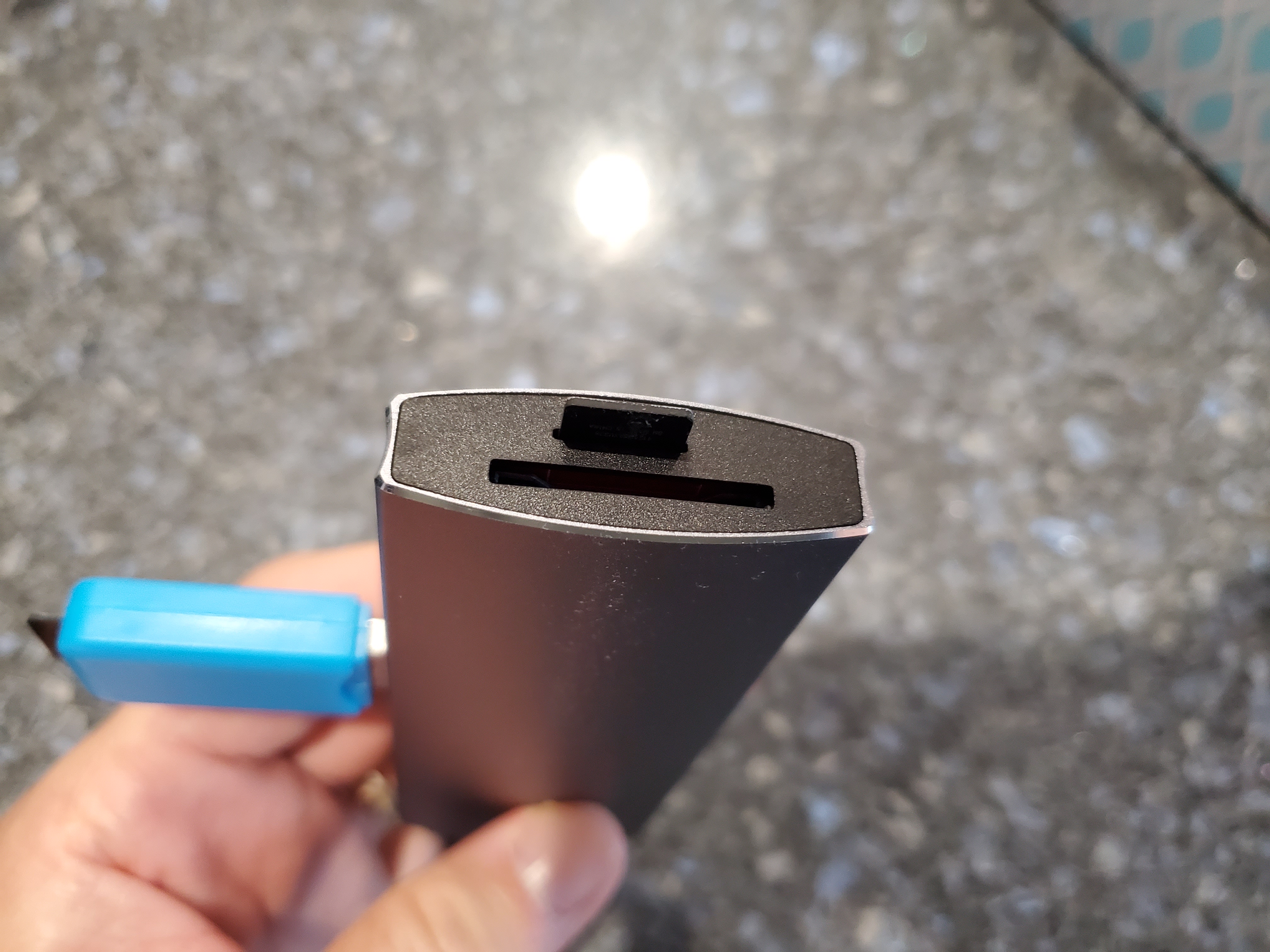
in: there are two SD Card reader slots, one micro and one full
size. All I needed to do was set up a FolderSync rule to copy files
from one card to another. My files wouldn't be in the cloud, but at
least they'd be duplicated. Heck, I could copy them to multiple
cards if I wanted.
Alas, that was asking too much of this particular USB C hub. The hub
recognizes the micro SD slot *or* the full size slot. It can't
recognize them both at the same time. However, there was an easy work around: I
plugged a USB A Micro SD Card reader into one of the USB ports. The
hub had no problem accessing these files. Using the extra SD card reader means carrying yet another
piece of hardware, but it's not particularly bulky (especially if I splurge
and get the mini-version).
So now I can back up my photos to the Cloud or to another SD Card
with ease, all while my phone is charging. So from now on, when the
DSLR goes, so does the USB C hub and the bonus SD Card reader.